
A router can work for years after you set it up. Working is not the same as receiving security updates. Check the exact model and its support status before deciding whether to keep it.
Start with the router you actually use
Your router connects devices to the internet and directs traffic between them. Its firmware is the software that controls the device. Security updates can correct flaws in that software.
In April 2026, the FBI warned that attackers had exploited vulnerable routers and changed network settings. The alert recommends updating firmware, replacing devices that no longer receive support, changing default credentials, and disabling internet-facing remote management. Read the FBI alert.
Find the exact model and hardware version
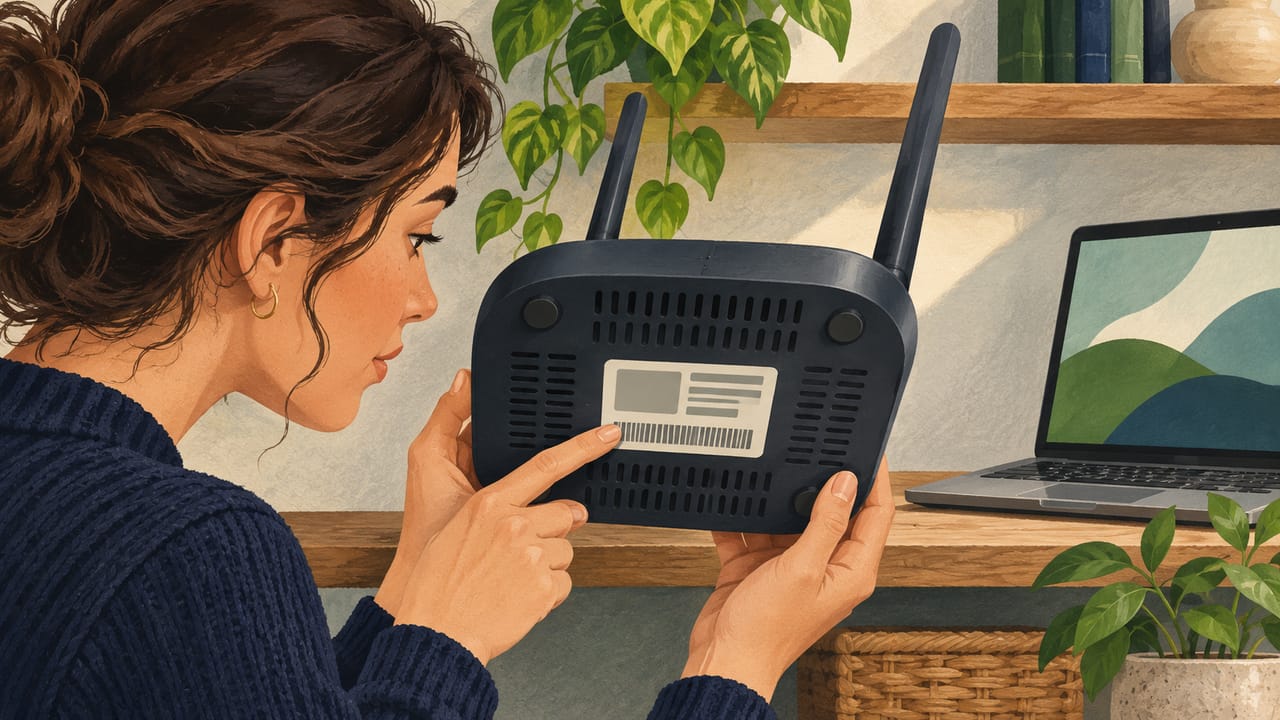
Look for the manufacturer, model number, and hardware version on the label, packaging, or router administration page. Similar model names can have different hardware versions and support periods. Record the details without sharing the serial number or passwords publicly.
If your internet provider supplied a combined modem and router, ask the provider which device you have and who manages its updates. If you also use a separate router or mesh system, check each device that routes traffic.
Check support and firmware separately
Visit the manufacturer’s official support site. Search for the exact model and hardware revision. Look for a support policy, security update information, and the latest firmware available for that version.
A recent download does not by itself promise future updates. A support end date tells you when the stated support period ends, but check the wording: a sales end date or warranty expiration is not necessarily the security support end date. If the policy is unclear, ask the manufacturer or provider for the security update status.
Compare the installed firmware with the official release for your exact device. Follow the manufacturer’s instructions to install an available update. Enable automatic updates if offered, and check later that the installation succeeded. Do not disconnect power during an update unless the instructions tell you to do so.
| Finding | Next action |
|---|---|
| Security updates continue | Install the latest applicable firmware and review settings. |
| Security support has ended | Plan to replace the router with a supported device. |
| Support status is unclear | Ask the manufacturer or provider for the exact model and revision. |
The FBI recommends replacing end-of-life routers when possible and applying available firmware updates. End of support raises risk because new security fixes may no longer arrive. It does not prove the device is infected. See the FBI guidance.
Review the settings that protect access
Use the official app or the administration address in the manufacturer’s instructions. The administrator password controls router settings. It is different from the Wi-Fi password people use to join your network.
Change a default administrator password to a unique, strong password. Store it in a password manager or another secure place. Use a separate strong Wi-Fi password. The FBI advises changing default credentials and disabling remote management from the internet. Read its recommendations.
Disable internet-facing remote administration
Find remote management or remote administration in the settings. Turn it off unless you need it and understand how access is protected. Local administration on your home network is a separate function.
Check Wi-Fi encryption
Choose WPA3 if your router and devices support it. Otherwise use WPA2 with a strong password. Check the manufacturer’s instructions if an older device cannot connect.
Check who can administer the router
Remove accounts you do not recognize when the router supports separate accounts. Review changes with the person or provider who manages your network.
Some provider-managed equipment limits which settings you can change. Ask the provider to confirm the update policy and remote management configuration. A provider’s maintenance connection may be different from a customer-facing remote administration feature.
The FTC recommends WPA3 Personal or WPA2 Personal to encrypt a home Wi-Fi network. Read its home-network guidance.
Decide whether to keep or replace it
Before replacing provider equipment, ask whether you can use your own router and whether a modem or gateway must remain. Save the settings you need, such as the Wi-Fi network name and any provider-specific connection details. Follow the provider’s setup instructions for the replacement.
Avoid a factory reset as a first troubleshooting step. A reset can erase connection and network settings. Record or back up the configuration first, and confirm how to restore internet access with your provider.
What if something looks wrong?
Unrecognized setting changes, connectivity problems, or overheating can be signs of trouble, but they do not prove an intrusion. The FBI lists these as possible indicators. Review its advice.
Record the unexpected changes and contact the manufacturer or provider for help. Apply available updates and change the administrator password. The FBI also recommends restarting the router when suspicious activity is present. A restart alone is not proof that a device is clean.
If an account may be affected, use a trusted device to contact its provider and change the account password. If this is a work network or work equipment, contact your employer’s IT team before changing settings. If you suspect a crime, you can report it to the FBI Internet Crime Complaint Center.
Sources and update
Checked November 2, 2026. Router menus and support policies vary by model and provider.
Frequently asked questions
Is an old router automatically unsafe?
No. Age alone does not establish whether a router is compromised. Check the exact model, support status, installed firmware, and settings.
Does a firmware update guarantee the router is secure?
No. Updates address known issues, but they do not guarantee that every issue is fixed. Also review credentials and remote administration.
What if my internet provider owns the router?
Ask the provider whether it installs security updates, whether the device remains supported, and how remote administration is controlled.
Should I factory reset the router?
Do not treat a reset as the first step. It can erase settings needed for service. Record or back up the configuration and ask your provider how to reconnect first.